Add Users to Organization
Invite users to your organization to grant them access to individual workspaces.
About This Task
Before you can grant users access to workspaces, you must first invite them to your organization. When you send an invitation, the user receives an email with a link to set up their login and password.
Invite Users
- Click your profile icon and choose Settings.
- Go to Organization.
- Open Members and click Invite Members.
- Enter one or more email addresses. Separate multiple addresses with a comma, a space, or by pressing Enter after each one. You can click Invite now to add the users to the organization without granting them permissions to any workspaces.
- To add the users to workspaces within the organization:
- Click More Options.
- Choose one or more workspaces and a role for the users. The same role applies to all users and workspaces in this invite. The role defines user permissions for the workspace. For details, see User Roles and Permissions.
- Click Invite. Each email address receives its own invite, so if one invite fails, the others still go through and the modal closes.
How Workspace Roles Are Applied
The workspaces and role you choose in the invitation are applied whether the person is new to the platform or already has an account, for example, in another organization.
- New users get the selected role in the selected workspaces when they set up their login.
- Existing users are added to your organization right away and get the selected role in the selected workspaces.
- Organization admins get the admin role in all workspaces of your organization.
You can only select workspaces that belong to your organization. If a workspace doesn't exist in your organization, the invitation fails with an error that names the workspace ID. In this case, deepset doesn't create the user or the invitation, so you can correct the workspace and send the invitation again.
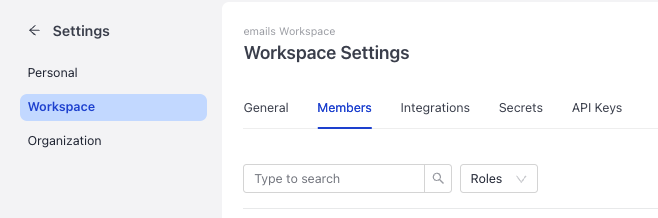
You can update user roles in workspaces later in Workspace settings from the Members tab.
Was this page helpful?