Test Your Pipeline in Playground
Time to test your pipeline!
About This Task
You can run queries with your pipeline and check whether the responses match the quality you expect. You can also use the Playground to collect feedback from users; they can add feedback to each response. You can then check this feedback on the Pipeline details page. For more information, see Collect User Feedback.
Upload Files
You can upload files directly in Playground. If the workspace doesn't contain any files, the pipeline runs only on the files you upload. If the workspace already has files, the pipeline uses both the workspace files and the ones you uploaded.
The file upload button (paperclip icon) appears in the search field only when both of the following conditions are met:
- Your pipeline's
Inputcomponent is configured to accept files. - You have write access to files in the workspace.
To support file uploads in Playground, make sure the Input component is configured to receive files. We also recommend adding Converters and PreProcessors that can handle the types of files you plan to upload, just like you would in an index. Without them, the uploaded files won't be preprocessed.
If you're using a pipeline built with one of our templates, all the necessary components are already included.
Download Generated Files
If your pipeline generates files as output, for example processed documents, reports, or other file types, you can download them from the Playground. Open the sources section in the answer and download the file.
Browse and Download Session Files
If your pipeline or agent writes files during a session, for example when an agent saves intermediate results or generated reports, you can browse all files created in that session without leaving Playground.
Click Session files next to the debug icon on an answer in Playground chat or search to open a modal listing every file in the session. In the list, you can:
- Click a
.txt,.json,.yaml, or.ymlfile to preview its contents in a read-only code editor. - Click the download icon next to any file, or the download icon in the file preview, to download it.
The Session files button is also available in the footer of a conversation turn in History's Conversation View, so you can review the files a past session produced.
For files other than .txt, .json, .yaml, and .yml, a preview isn't available; download the file to view it.
Pipeline Output Type
You can indicate the output type of your pipeline in pipeline YAML to make sure Playground displays the results in the best possible way. Add pipeline_output_type to the YAML and set it to one of these values:
chatgenerativeextractivedocument
For details, see Set Pipeline Output Type.
Logs
To see how Playground produced an answer, click the View trace (bug) icon below the answer. It opens the full trace for that query, with each component's inputs, outputs, timing, and logs. Traces can take a few seconds to appear after a query. For details, see Trace Your Pipelines in the UI.
Prerequisites
- If you're asking your colleague to test your pipeline, have a look at Guidelines for Onboarding Your Users.
- You must have a deployed, active pipeline.
Run Queries in the UI
- Log in to Haystack Enterprise Platform.
- Click Playground.
- Choose the pipeline and version you want to test. By default, the deployed version or the latest saved version is used.
- To set filters, click Configuration.
Note: Filters are available only if the files have metadata. You can add metadata to your files when you're uploading them. These metadata then act as filters at search time. In the filter panel, select filters from a list in Simple mode. To build filters the list can't express, such as nestedAND,OR, andNOTconditions, switch to Advanced and type a JSON filter. Advanced mode accepts the same filters as the API, so you can try a filter here and reuse it in your API requests. For details on the JSON filter structure, see Filter Syntax.
- To upload files, click the paperclip icon in the Search field. This icon only appears when your pipeline's
Inputcomponent is configured to accept files and you have write access to files.

-
To test different settings, use the Configuration option to change component parameters for the query you're asking. Use the format
{ "component_name": { "parameter_name": "parameter_value" }}. This is useful for trying out different parameter values or testingConditionalRouterroutes.For example, you can change the retriever's
top_kvalue, like this: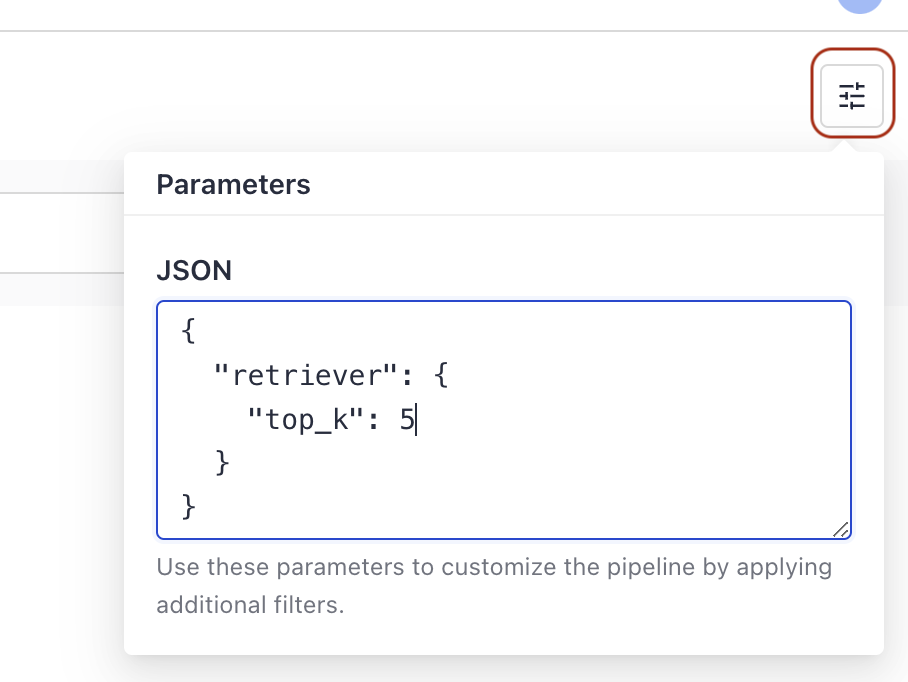
-
Type your query and click Run.
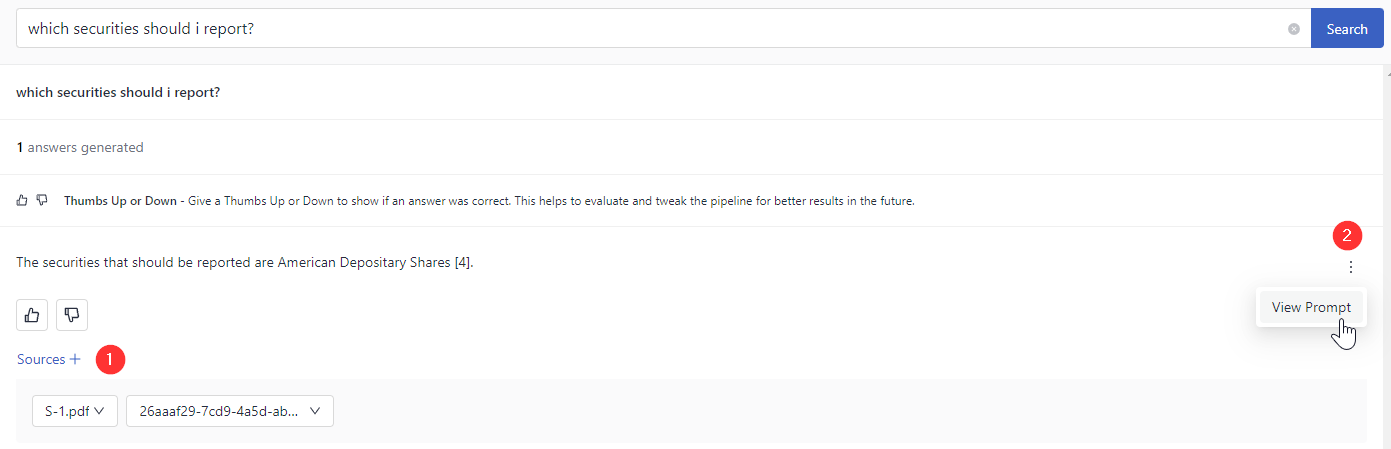
Check SourcesExpand the Sources (1) section below the search result to view the documents and files it's based on. Click the More actions button (2) next to an answer to view the prompt that was used to generate it:
-
To check how the pipeline produced the answer, click the View trace (bug) icon below the answer. The trace for this query opens. If it isn't available yet, wait a few seconds and click Try again.
Run Queries with the REST API
To query your pipeline from your own app, see Run a Search. For other ways to use your pipeline in production, see Productionizing Your Pipeline.
What's Next
You can open or download each document containing the answer. To do that, hover over the More Actions icon next to the document name.
You can also copy or download the answer text using the copy and download icons next to the answer. Downloading saves the answer as a Markdown file.
You can also give feedback for each answer using the thumbs-up and thumbs-down icons. This will let the pipeline creator know how the pipeline is doing.
As the pipeline creator, you can then analyze the feedback on the Pipeline Details page. Click the pipeline name to open it.
Was this page helpful?