Upload Files
Upload your data to Haystack Enterprise Platform. The files you upload are then turned into documents and indexed to make them searchable for your pipelines.
- Currently, Haystack Enterprise Platformsupports files encoded in UTF-8 format. For files with different encoding formats, you may experience issues with display or formatting.
- A single file cannot be larger than 200 MB. If a file exceeds this size, it won't be uploaded. You can use the Haystack Platform SDK to upload larger files.
- Whenever you upload a file, it's indexed by all indexes enabled in this workspace. This means all deployed pipelines then use this file to resolve queries.
About This Task
Supported File Types
You can upload any file types, there are no restrictions. To preprocess most file types, you can add Converters to your index. For the file types for which a converter is unavailable, we recommend preprocessing the files outside of Haystack Enterprise Platform. You can use one of Haystack Platform's integrations to do that. For details, see Using Hosted Models and External Services.
To learn more, see also PreProcessing Data with Pipeline Components.
Once you upload your files, you can preview them in Haystack Platform. Preview is supported for TXT, PDF, JSON, HTML, MD, XML, CSV, DOCX, DOC, XLSX, XLS, PNG, JPG, JPEG, GIF, SVG, and WEBP formats.
Metadata
You can upload files together with metadata using the SDK, the REST API, or directly from the Haystack Enterprise Platform interface. When uploading from the Haystack Enterprise Platform interface, you can either attach a JSON metadata object to all the files in a batch directly in the upload dialog, or add metadata to your files one by one after they're already uploaded.
If you're uploading files with metadata, the resulting documents inherit the metadata from your files.
To download a file's metadata as a JSON file, go to Files, find the file whose metadata you want to download, click More Actions, and then click Download Metadata. Haystack Platform saves the metadata as <file_name>.metadata.json.
Preparing file metadata
To add metadata to your files at upload time, create one metadata file for each file you upload. The metadata file must be a JSON file with the same name as the file whose metadata it contains and the extension meta.json.
For example, if you're uploading a file called example.txt, the metadata file should be called example.txt.meta.json. If you're uploading a file called example.pdf, the metadata file should be example.pdf.meta.json.
Here's the format of metadata in your *.meta.json files: {"meta_key1": "value1", "meta_key2": "value2"}.
To learn more about adding metadata, see Add Metadata to Your Files.
To learn about how to use metadata in your search app, see Working with Metadata.
Upload Sessions
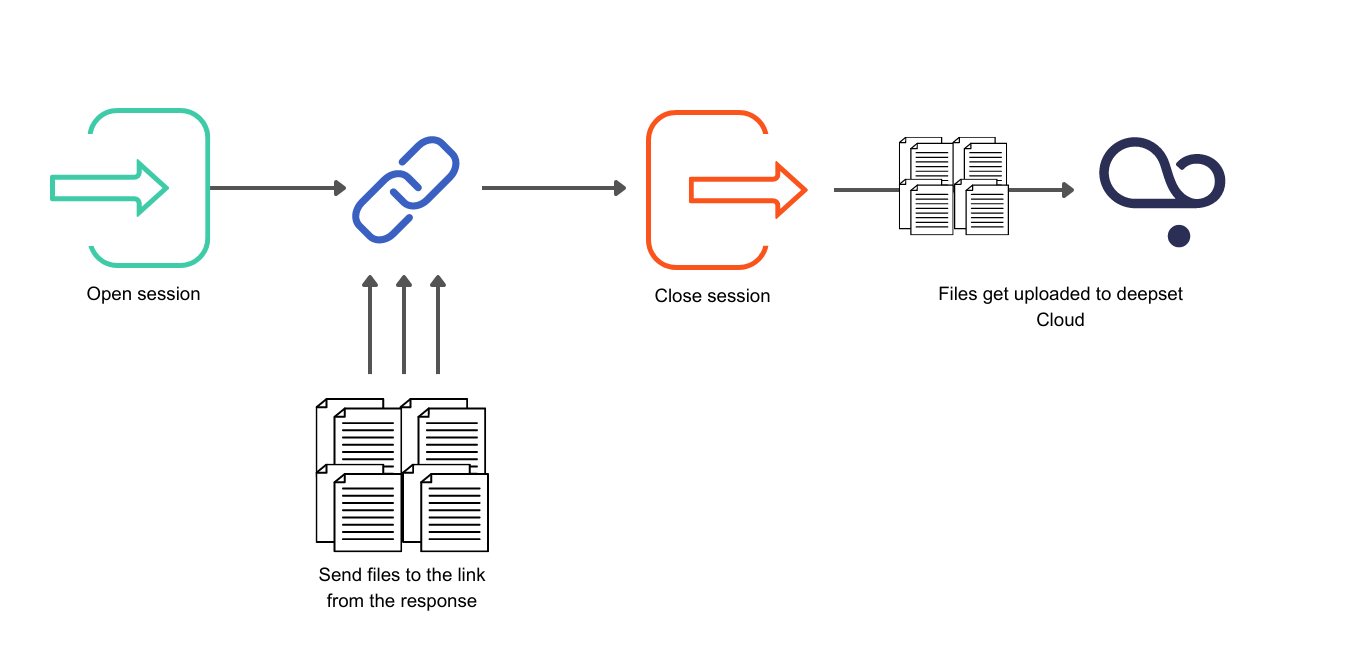
The SDK and the Create Upload Session REST API endpoint use upload sessions. To start uploading files, you must first create a session. Sessions help you track the files you're uploading. Each session has an ID and you can check the status of your uploaded files at any time. Files start uploading only after a session is closed. If you don't close a session explicitly, it's automatically closed after 24 hours.
We recommend using upload sessions for large file uploads as they are faster and more efficient. There's no limit on the number of files per session, but we recommend keeping it to a maximum of 50,000 files.
After you upload files to Haystack Enterprise Platform, it may take some time before the files become visible.
This diagram explains how the upload sessions work:
File Updates
To learn how enabled indexes handle updated files, see Indexes.
Choosing the Best Upload Method
- If you prefer to upload from Haystack Enterprise Platform and you have a limited number of files, upload from the UI.
- If you have a lot of data and metadata to upload and are familiar with coding, use the SDK.
- If the SDK upload doesn't work for you, use the REST API.
Prerequisites
-
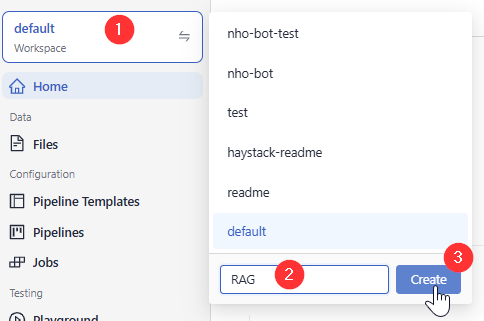
Make sure you have a workspace to upload your files to. You can easily create one if needed:
-
-
In Haystack Enterprise Platform, click the workspace name in the upper left corner.
-
Type the name of the workspace you want to create. You can create up to 100 workspaces.
-
-
Upload from the UI
- In Haystack Enterprise Platform, go to Files>Upload Files.
- Drag your files and folders to Haystack Platform.
- Optional: Expand Add Metadata (optional) and type a JSON object with the metadata you want to add to all the files in this batch, for example
{"key": "value"}. The Upload button stays disabled until the JSON you entered is valid. - Click Upload. The files may take a while to be processed and displayed on the Files page.
Upload with the SDK
This method is best if you have many files to upload. It makes it possible to add metadata to your files. You can use the command-line interface or Python methods. For details, see Upload Files in the Haystack Enterprise SDK docs.
See also our tutorials:
- Tutorial: Uploading Files with Metadata through SDK CLI
- Tutorial: Uploading Files with Python Methods
Upload with the REST API
To upload files from your own code, use upload sessions or the Upload File endpoint. For step-by-step instructions, see Upload Files with the REST API.
Related Information
Was this page helpful?