Quick Start Guide
Build an AI agent that answers questions about your own files. You'll index your data, give an agent a tool to search it, test the agent, and deploy it so you can call it from your app.
- Time to complete: 15 minutes
- Prerequisites:
- Access to Haystack Enterprise Platform.
- An API key for a model provider whose models support tool calls, such as OpenAI, Anthropic, or Amazon Bedrock. The agent needs a model to run, and Haystack Platform doesn't include one by default.
- Goal: After completing this guide, you'll have a deployed agent that searches your files to answer questions, and you'll know where to go next to add more tools.
Connect a Model Provider
Connect Haystack Platform to the provider of the model you want your agent to use:
- Click your profile icon and choose Settings.
- Go to Workspace > Integrations.
- Find your model provider and click Connect next to it.
- Enter your API key and any other required details, and click Connect.
Result: Pipelines in this workspace can now use the provider's models. To learn about integration scope and other providers, see Add Integrations.
You work in workspaces, which hold your files, indexes, and pipelines. When you first sign in, you're in the default workspace. You can follow this guide there, or create a new workspace by clicking the workspace name in the upper left corner.
Upload Your Files
Add the files you want your agent to answer questions about:
- Go to Files > Upload Files.
- Drag your files into the Upload Files window and click Upload.
Result: Your files are listed on the Files page.
You don't have your own files at hand? Use one of the sample datasets available on the Files page.
Create an Index
An index prepares your files for search: it converts and chunks them, and writes them to a document store. Use the standard index template:
- Go to Indexes > Create Index.
- Choose Standard Index (English) and click Create Index.
- Leave the default configuration and click Enable. Wait until indexing finishes.
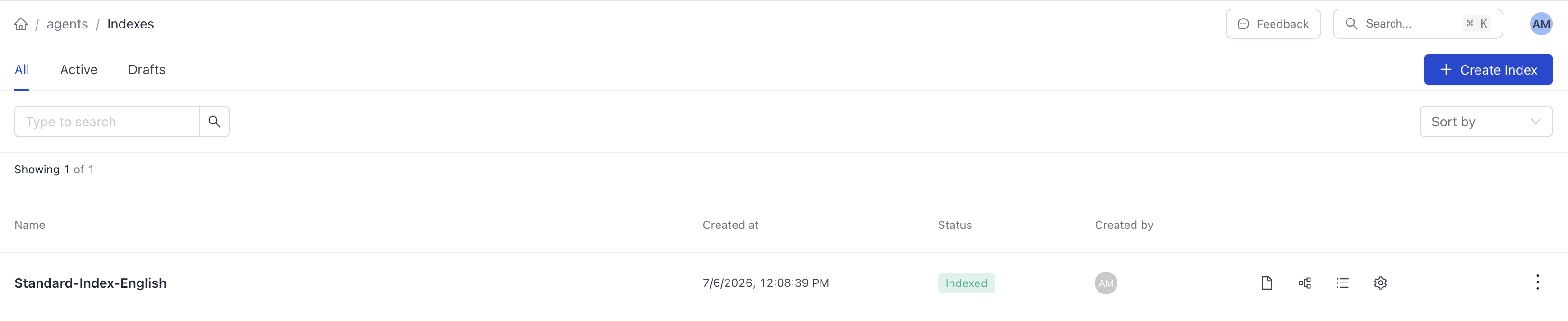
Result: The index has the status indexed, and your files are ready to search. To learn more, see Indexes.
Create the Search Tool
Your agent searches your files through a tool. Create the pipeline that the tool runs:
-
Go to Pipeline Templates.
-
Choose Document Search as the category, find Semantic Document Search, and click Use Template.
-
Enter document-search as the pipeline name and click Create Pipeline. Builder opens.
-
Click the
OpenSearchDocumentStorecomponent and in the Index field, choose Standard Index (English). -
To test the pipeline, click Run Pipeline next to the
Inputcomponent and type a question about your files. You should see matching passages from your files.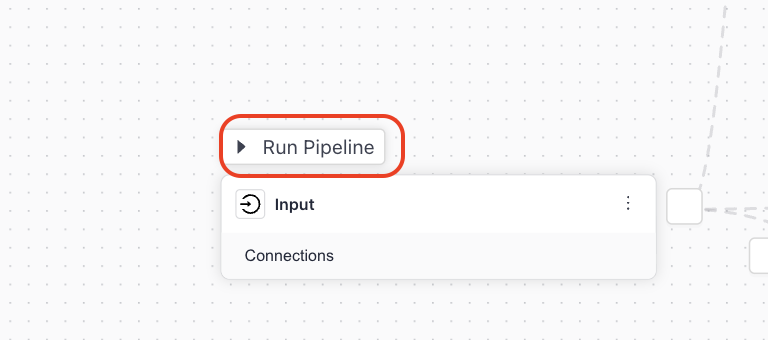
-
Click Deploy to make the pipeline available as a tool.
Result: You have a deployed pipeline that returns passages from your files.
Create the Agent
-
Go to Pipelines > Create Pipeline and on the Templates page, click Create empty pipeline.
-
Enter my-first-agent as the pipeline name and click Create Pipeline.
-
In Builder, click Add to open the component library and add these components to the canvas:
InputAgentOutput
-
Connect
InputtoAgent, andAgenttoOutput. When you draw a connection, it becomes visible in the Connections pane. If there are multiple connection options, you must confirm them. Confirm the connection betweenqueryandmessagesby clicking it in the pane.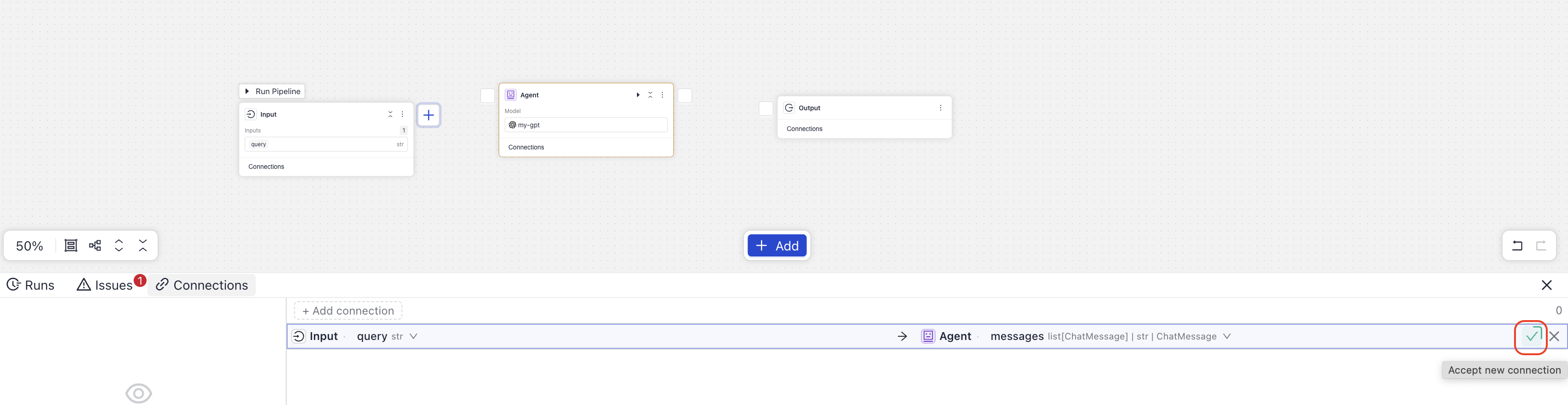
-
Click the
Agentcomponent to open its settings and choose a model from the provider you connected.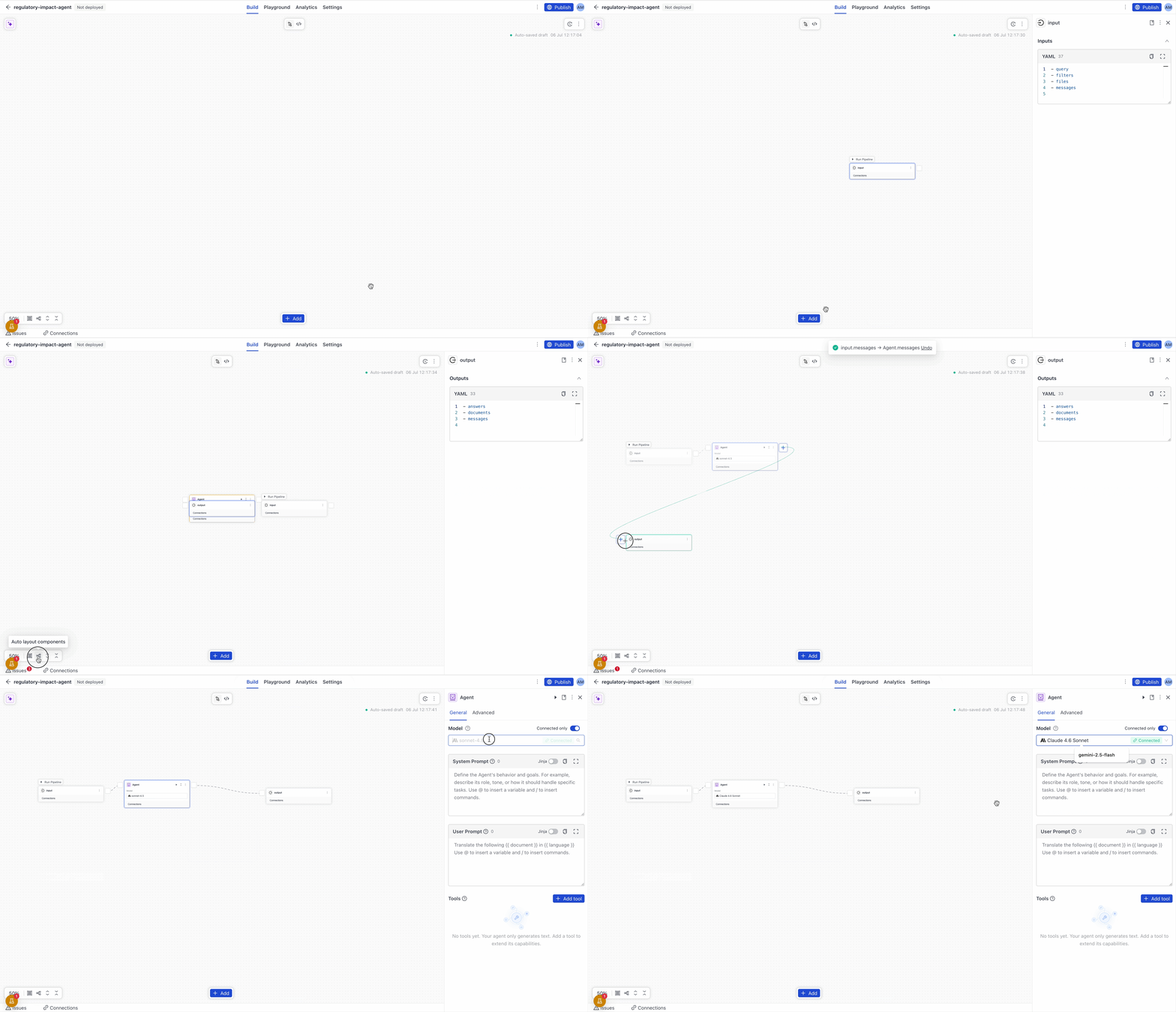
Result: You have an agent that can answer questions using its model. Next, give it access to your files.
Give the Agent a Search Tool
-
Click the
Agentcomponent to open its configuration. -
In the Tools section, click Add Tool and choose Pipeline as the tool type.
-
In the Create Pipeline Tool window, choose Existing pipeline, select document-search, and leave Current draft as the version.
-
Enter
search_documentsas the tool name and paste this description:Search the company's documents for passages relevant to the user's question.Use this tool whenever the answer may be in the documents.The agent reads the tool's name and description to decide when to use it, so keep them clear and specific.
-
Click Add Pipeline Tool.
-
In the system prompt, tell the agent how to use the tool. For example:
You are a helpful assistant. Answer questions using the search_documents tool.Base your answers on the passages the tool returns. If the documents don'tcontain the answer, say so.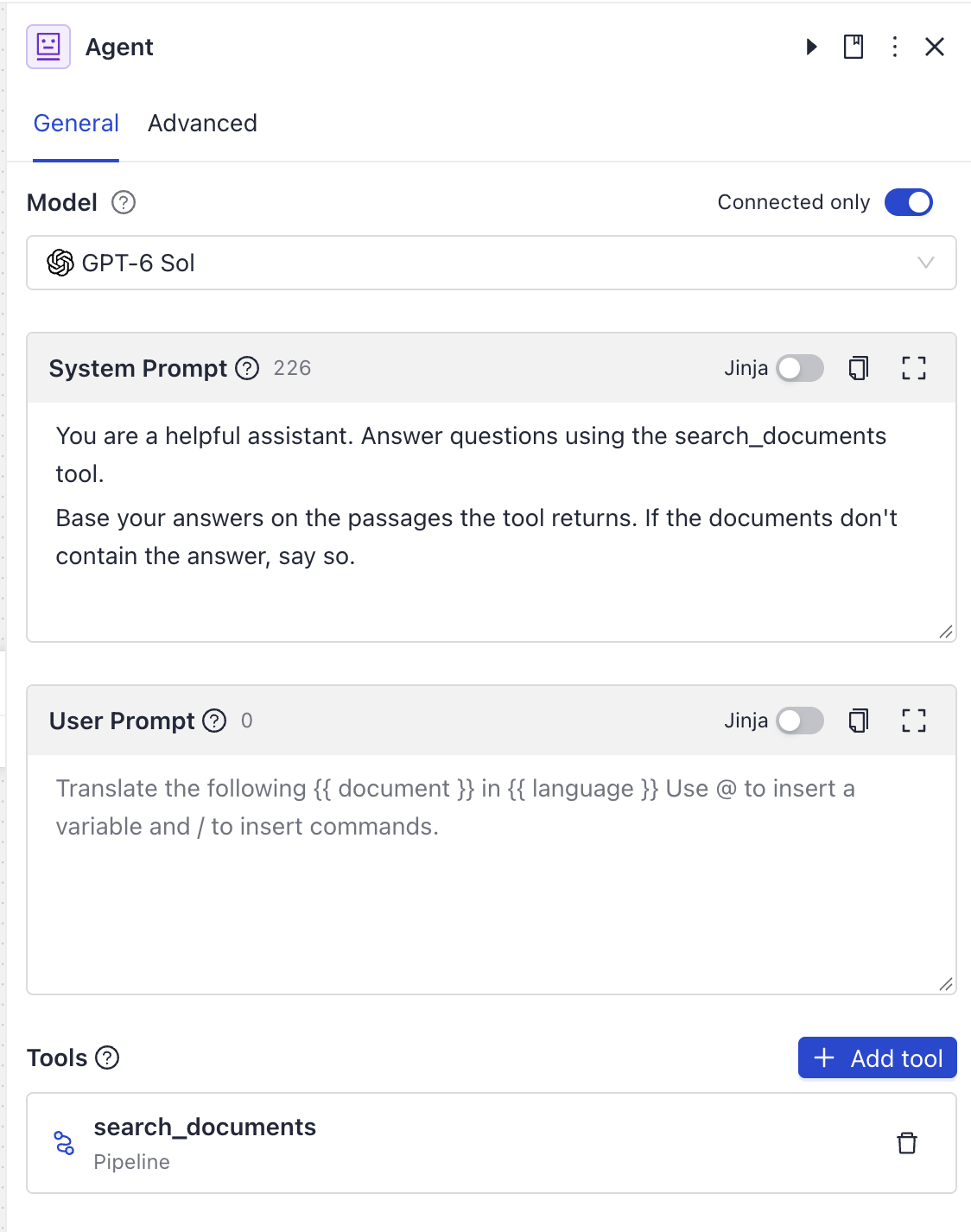
Result: Your agent can now search your files. To learn about other tool types, see Agent Tools.
Test the Agent
- In the top navigation, switch to Playground.
- Ask a question about your files and see how the agent answers.
The agent calls search_documents, reads the passages it returns, and answers your question. To see each step the agent took, including the tool call, open the trace for the run.

Result: You have a working agent that can search your files. You can now publish it to a service, share it with others, and call it through the REST API.
What's Next
Was this page helpful?