Working in Haystack Enterprise Platform
In Haystack Enterprise Platform, you work within workspaces where you keep your data and pipelines. You can have multiple workspaces, each with different content. There are three interfaces (GUI, API, and SDK) you can use to interact with Haystack Enterprise Platform, depending on what's most convenient to you.
Workspaces
In Haystack Enterprise Platform, you work within organizations to which you were invited. Each organization may have multiple workspaces with different data. Pipelines and data are not shared among workspaces.
Pipelines, indexes, files, and jobs are specific to a workspace. When you delete a workspace, all these data are deleted as well.
When you create a workspace, only you, as the creator and the Admin users in the organization, have access to it. To permit other users to access your workspaces, you must grant them access. For details, see Manage User Access.
After logging in, you land on the homepage, where you can check the count of pipelines and indexes in your workspace. You can also go to detailed statistics to check the number of files and documents and the details of searches run with your pipelines. These include the top answer (the answer with the highest relevance score) and the top file (the file containing the top answer). The search time is in seconds.
You can quickly switch between workspaces. Just click the workspace name and choose the one you want to switch to. You can also open the command palette and type the workspace name. For details, see Switch Workspace and Organization.
Navigation
Here's an explanation of what each navigation item does:
| Navigation Step | Action |
|---|---|
| Workspace name | Switch between workspaces. Create a workspace (just type the name of the new workspace). You can create up to 100 workspaces. After creating a workspace, only the workspace creator and Admin users in the organization can access it. Grant access to other users if you want them to use your workspace. |
| Home | Check the count of pipelines and indexed in your workspace. Access pipeline and index templates to create a pipeline or index. Check your workspace statistics, like the number of files or latest searches. |
| Files | Upload files. These are the files your pipeline uses for search. Manage existing files (view, delete, preview, filter by metadata). |
| Indexes | Create indexes. Manage existing indexes: enable, disable, view details. Click an index name to view its details, the query pipelines using it, and logs. |
| Pipeline Templates | Choose a template. View templates. |
| Pipelines | Create pipelines. Manage existing pipelines organized by their service level (deploy, undeploy, edit, view pipeline details, share pipelines, and export user feedback). Click the name of a pipeline to view it in Builder. |
| Jobs | Schedule jobs to run asynchronously. Currently, you can run batch question answering across the files in the workspace. |
| Playground | Test your pipelines. |
| Prompt Explorer | Engineer your prompts, try out different prompts, and compare them across up to three pipelines. Choose a prompt from a library of curated prompts. |
To access your personal settings, organization and workspace settings, connections to model providers, and documentation, click your profile icon in the top right corner.
Command Palette
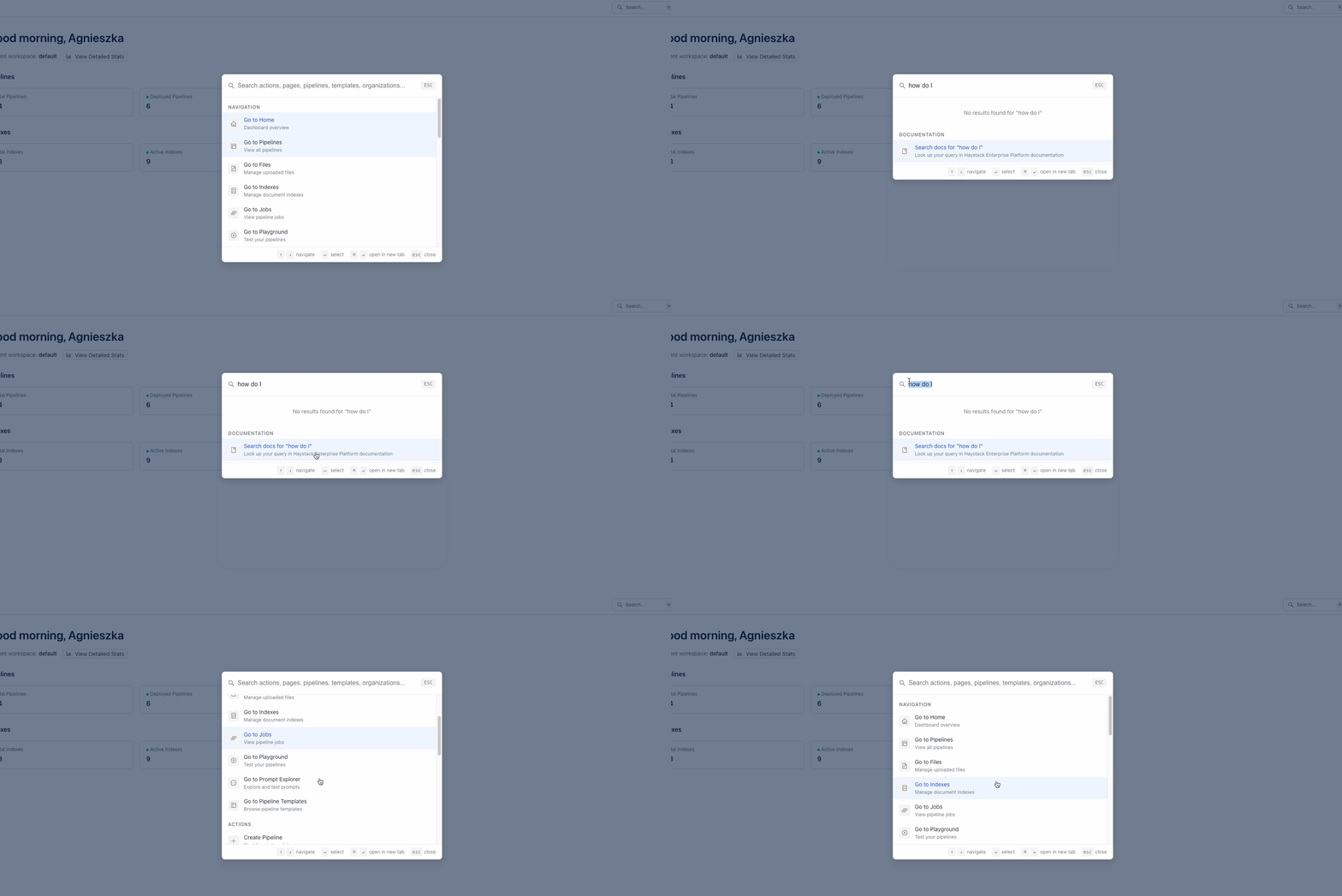
The command palette is a quick-access tool that lets you navigate Haystack Enterprise Platform faster. Press Cmd+K (macOS) or Ctrl+K (Windows) to open it from anywhere in the platform.
Use the command palette to:
- Quickly access your recent work.
- Search documentation. Type a keyword to find relevant documentation without leaving the platform.
- Find pipelines and indexes by typing their names.
- Jump to any page or section directly, saving you multiple clicks.
- Open any tab of the workspace and organization settings.
- Switch between organizations and workspaces.
- Open your personal settings and log out.
- Create component connections in Builder.
Search the Command Palette
The command palette matches every word you type, in any order. For example, foo play finds the foo — Playground entry, and secrets org finds Secrets (Organization). Results whose label starts with your query appear first, then results whose label contains it, and then results that match only on related keywords.
Navigate to Pages and Settings
The command palette offers the same pages as the sidebar and the same settings tabs as the Workspace and Organization settings pages, including:
- Workspace pages: Detailed Stats, Evaluation,and AI Operator, in addition to the pages in the sidebar.
- Workspace settings: all tabs of the workspace settings, such as Components.
- Organization settings: all tabs of the organization settings, such as Workspaces, Roles, Components, and Compute, Quota, Extra Dependencies, Environments, Prewarm Models, SSO.
The command palette shows an entry only if you can open the page it leads to. For example, the Go to Jobs entry doesn't appear in profiles that have no Jobs page, and a settings tab that requires an Admin role doesn't appear for other users.
Jump Between Tabs of the Current Pipeline or Index
When you're on a pipeline or an index, the command palette shows a This pipeline or This index group at the top of the default list. It contains the other tabs of the pipeline or index you're working on, such as Build, Playground, Analytics, and Settings
When you switch to a different pipeline or index from the title in Builder or Index Builder, you stay on the tab you're on. For example, if you're on the Logs tab of an index and select another index, the other index opens on its Logs tab.
Switch Workspace and Organization
Type a workspace or organization name to switch to it. If you're on a page that isn't specific to a workspace, the command palette switches to the selected workspace. If you're on a workspace page, it opens the same section in the other workspace. For example, from /my-workspace/pipelines, it opens /other-workspace/pipelines. It never opens the same pipeline or index, because those exist only in their own workspace.
Use Account Actions
The command palette offers these account actions:
- Personal Settings
- Log out
- Theme switch: switches between the light and dark theme.
Work in Builder
To find a component or connect components while you build a pipeline or index, open the command palette with a canvas open in Builder. It lists the components on that canvas and the Connect components action. When you open a dialog that has its own canvas, such as a revision preview or a tool editor, the palette lists the components of that canvas. When you close the dialog, the palette lists the components of your canvas again.
AI Assistant
You can access the AI Assistant from anywhere in the platform. Use it to help you fix issues, build pipelines, find documentation, and more.
Settings
Clicking your profile icon in the top right corner opens a menu with additional settings. Click Settings to access your personal settings, organization and workspace settings, including integrations and API keys. To open a settings tab directly, use the command palette.
Three Interfaces
You can work in Haystack Enterprise Platform through one of these interfaces:
- An intuitive, user-friendly graphical user interface, where you can see real-life updates and get immediate feedback on your actions.
- REST API for a platform-independent way to communicate with Haystack Enterprise Platform. It supports all the tasks available in GUI.
- The Haystack Enterprise SDK for working with Haystack Enterprise Platform from Python or the command line. Use it to deploy and run pipelines, and to upload files.
Was this page helpful?