Collect User Feedback
Monitor users' feedback to give you an indication of how your AI system is doing. Collecting feedback is crucial throughout your app's lifecycle to evaluate quality and improve the pipeline, starting from development, through prototype testing, to production.
About This Task
You or your users can rate each answer as accurate (thumbs up), fairly accurate (thumbs sideways), or inaccurate (thumbs down). When users select the rating, they can explain it by selecting predefined reasons called tags or by adding comments in the text field.
Users can submit feedback for successful runs only. Runs that ended with an error have a failed status and cannot receive new ratings. Any feedback already recorded for a run before it failed still displays in the history table.
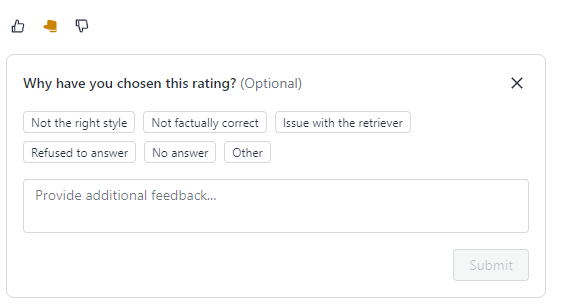
Admins can add feedback tags to a pipeline through the Pipeline Details page or REST API endpoints. Users can then select applicable tags when rating an answer. Tags can then help classify feedback entries:
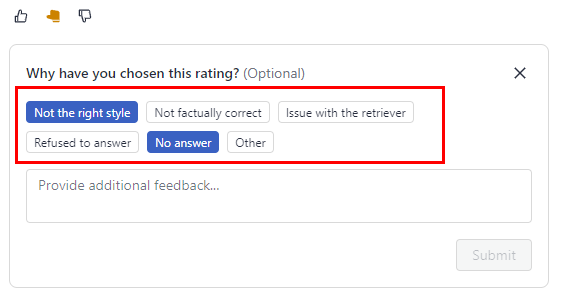
Before moving your pipeline to production, you can share its prototype and let the users test it. For information on how to do this, see Share a Pipeline Prototype.
Setting Up a Feedback System in Production
Collect feedback from your users to monitor your pipeline's performance over time, identify potential issues (such as data drift), or use it to improve your pipeline.
To collect feedback:
-
Add tags you want your users to select when assigning ratings to answers. Tags are specific to a pipeline.
To add tags in Haystack Platform:- Go to Pipelines and click the name of the pipeline you want to add tags to.The pipeline opens on the Analytics page.
- Switch to Settings and add feedback tags.
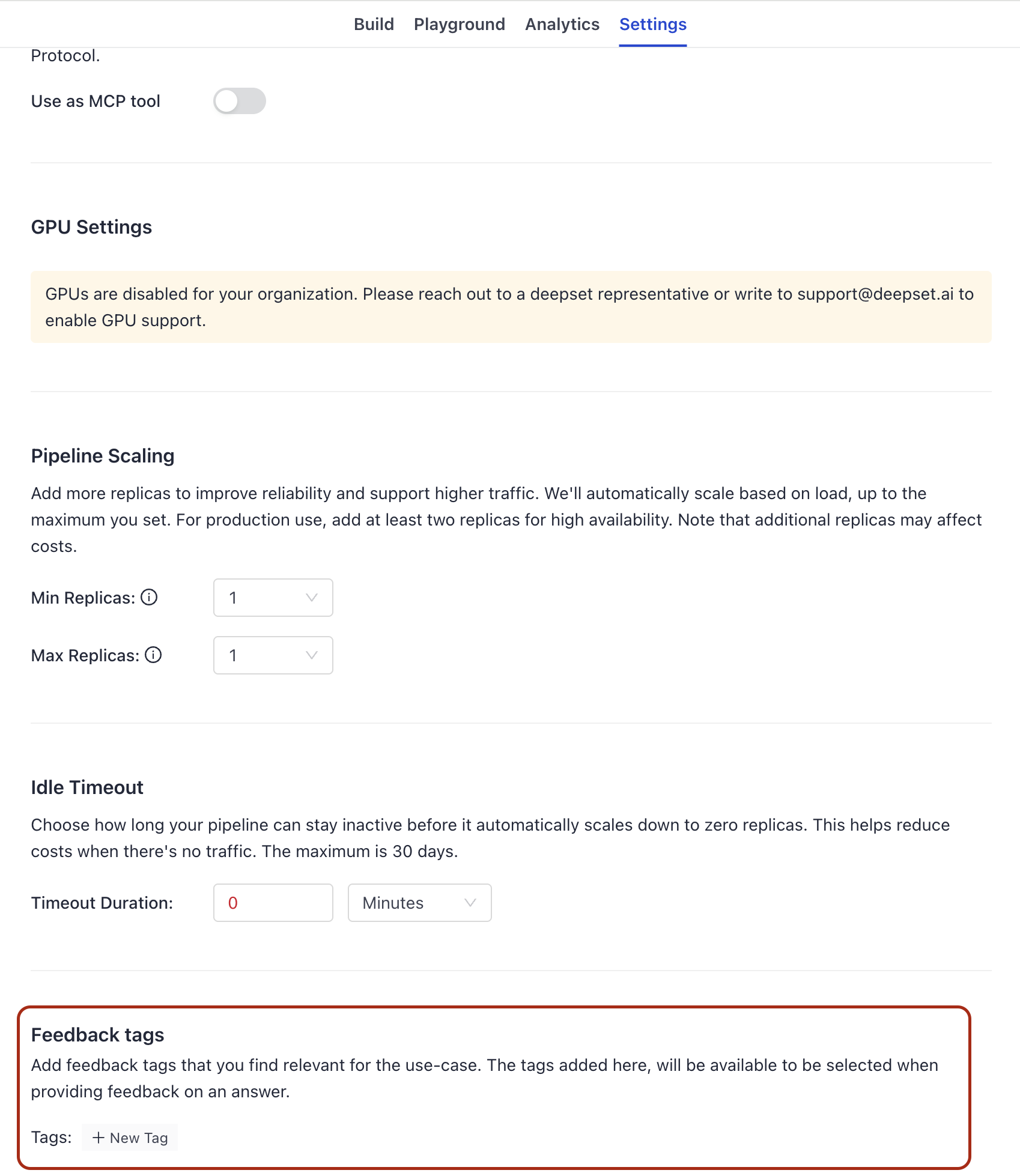
- Go to Pipelines and click the name of the pipeline you want to add tags to.
-
Add the "thumbs" buttons and a text field in your UI.
-
Send requests with the feedback to Haystack Platform's Create Feedback API endpoint.
If you're using the Haystack Platform UI, the feedback system is added to each pipeline by default. You just need to add tags to your pipeline, if needed.
Analyzing Feedback
You can analyze feedback on the Analytics tab:
- On the Pipelines page, click the name of the pipeline whose feedback you want to view.
- If you're in Builder, switch to Analytics.
- Go to History.
- Use Feedback Insights to analyze feedback patterns and generate executive summaries to help you understand performance trends and identify areas for improvement. You can start with one of the suggested prompts or enter your own query. Based on the prompt, AI analyzes your pipeline activity and generates a summary.
- In the table, go to Manage Table Preferences and enable columns related to feedback, like Feedback Rating, Feedback Notes, and Feedback Tags. You can then add notes and hashtags to your queries using these columns in the table.
To get detailed feedback entries, feedback statistics like the number of entries and average accuracy, or a CSV export of all feedback, use the REST API. For details, see Retrieve and Export Feedback with the REST API.
Related Information
Was this page helpful?